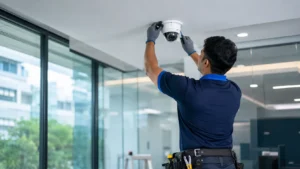
Most CCTV problems announce themselves at the worst moment: you open the app to check an incident and find a black screen, a blurry night image or a recorder that stopped saving footage days ago. Many of these faults have simple causes you can check yourself before calling a technician.
This guide lists the most common CCTV problems, what usually causes them and what to try. For anything involving mains power, ladders or opening equipment, call a qualified technician.
Quick Diagnosis Table
| Symptom | Most likely causes |
|---|---|
| “Video loss” or black screen on one camera | Power supply, loose connector, damaged cable, failed camera |
| All cameras offline | Recorder power, main power supply, PoE switch |
| Blurry or hazy picture | Dirty lens, condensation, focus shift, spider webs |
| White, foggy picture at night | IR reflecting off dome, wall, eave or webs |
| Black-and-white picture in daytime | Stuck IR cut filter, light sensor issue |
| Lines, flicker or rolling picture | Interference, poor cable, moisture in connectors |
| Recorder beeping | Hard disk error, video loss alarm, disk full |
| No recordings found | Hard disk not detected, recording schedule off |
| App shows offline | Internet, router, cloud service disabled |
| Too many motion alerts | Sensitivity too high, rain, insects, moving trees |
1. Video Loss or No Picture From a Camera
- Check whether the camera’s IR LEDs glow faintly red at night. If not, the camera may have no power.
- Check the power adapter or power supply box; a failed adapter is one of the most common causes.
- Look for loose or corroded connectors at the camera and recorder, especially after rain.
- If one camera works and another does not, swap their cables at the recorder to see whether the fault follows the camera or the channel.
2. Blurry or Hazy Images
- Clean the lens or dome gently with a dry microfibre cloth.
- Remove spider webs and insect nests.
- Check for condensation inside the camera, which points to a damaged seal.
- If only part of the scene is out of focus, the camera may have been knocked or its lens may need refocusing.
3. Poor Night Vision
- White glare: IR light is reflecting off a nearby wall, sunshade, eave or a dirty dome. Adjust the angle or clean the dome.
- Dark image: The area is beyond the camera’s IR range, or the IR LEDs have failed.
- Insects in view at night: IR LEDs attract insects; clean around the camera and consider smart detection to cut false alerts.
4. Black-and-White Picture During the Day
Cameras use a small mechanical filter that switches between day and night mode. If it sticks, the camera stays in night mode. Restarting the camera sometimes frees it; otherwise the camera may need repair or replacement. Also check that the day/night setting is on “auto” in the recorder.
5. Lines, Flicker or Interference
On HD analog systems, horizontal lines and rolling pictures often come from poor-quality cable, damaged connectors, cables running alongside power lines, or moisture in BNC joints. Check cable routes and connectors. Persistent interference may need re-cabling or a ground loop isolator fitted by a technician.
6. Recorder Beeping or Hard Disk Errors
- Check the recorder’s alarm or status menu to see why it is beeping.
- “HDD error” or “no HDD” means the hard disk is not detected or is failing. Hard disks have a limited life and need replacement eventually.
- “HDD full” means overwrite is turned off. Enable overwrite so the oldest recordings are replaced automatically.
- Repeated power cuts can damage hard disks. A UPS for the recorder helps prevent this.
7. Cameras Show Live but Nothing Is Recorded
- Check the recording schedule for each camera.
- Confirm the hard disk status is “normal”.
- If recording is motion-only, check that motion detection is enabled on that camera.
8. Mobile App Shows Device Offline
Restart the router, check the recorder’s network cable, and confirm the cloud or P2P status on the recorder shows online. Our guide on how to view CCTV on mobile has a detailed troubleshooting table.
9. Wrong Date and Time on Recordings
Set the correct time zone (India Standard Time) and enable automatic time sync in the recorder’s settings. Correct timestamps matter if footage is needed as evidence.
10. Too Many False Alerts
Reduce motion sensitivity, draw detection zones that exclude roads and trees, and switch to human or vehicle detection where available. Rain is a common trigger during the monsoon; see our rainy season CCTV maintenance guide.
11. Forgotten Password
Most recorders have a reset procedure using a security question, email, or the manufacturer’s support process. Contact your installer, as reset methods vary by brand and model.
Preventing Problems Before They Start
- Use good-quality cable and sealed outdoor junction boxes.
- Connect the recorder to a UPS.
- Check playback once a week to confirm recording.
- Keep firmware and apps up to date.
- Have the system serviced periodically.
Many picture problems are also avoided by good positioning; see our guide to CCTV camera placement.
Frequently Asked Questions
Why does my CCTV camera show “video loss”?
Usually because the camera has lost power or its cable connection. Check the power adapter, connectors and cable first.
Why is my CCTV picture white at night?
Infrared light from the camera is reflecting off something close, such as a wall, sunshade, dirty dome or spider web.
Why is my DVR beeping continuously?
Most often because of a hard disk error, a full hard disk with overwrite turned off, or a video loss alarm. Check the recorder’s status menu.
How long does a CCTV hard disk last?
It varies with usage and conditions, but surveillance hard disks run continuously and do eventually wear out. Check disk health during regular servicing.
Need CCTV Repair or Service?
If a problem persists, E-Sync Security Solutions can inspect and repair your CCTV system, including cameras, cabling and DVR and NVR recorders. Learn about our CCTV installation and service in Chennai, or call or WhatsApp +91 8682826272, message us on WhatsApp or use our contact page.